Unity Code MCP
Like Unity Code Pro, Unity Code MCP helps you work on your Unity game by communicating with Unity through our Visual Studio Code package. The key difference is simple: Unity Code Pro is for humans, while Unity Code MCP is for AI agents.
With Unity Code MCP, AI agents can iterate on your game code faster than ever before.
Why use it
- Built in Rust, lightweight, and fast
- Focused on coding workflows, not generic IDE operations
- Returns concise, relevant output to reduce token usage
- Supports iterative agent workflow: write code → compile → fix → test
Core tools
Unity Code MCP exposes two tools:
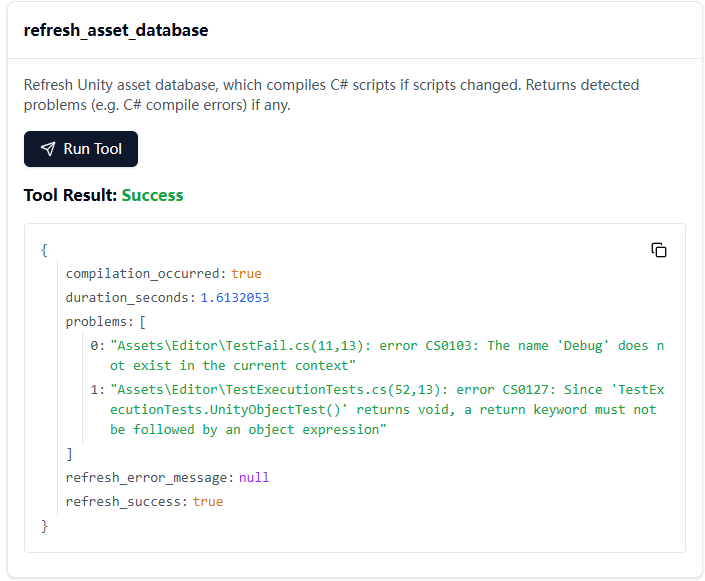
Asset Database Refresh
- Triggers Unity asset refresh and compilation
- Returns compile errors and refresh-time warnings/logs
- Handles Unity domain reload scenarios
Test Execution
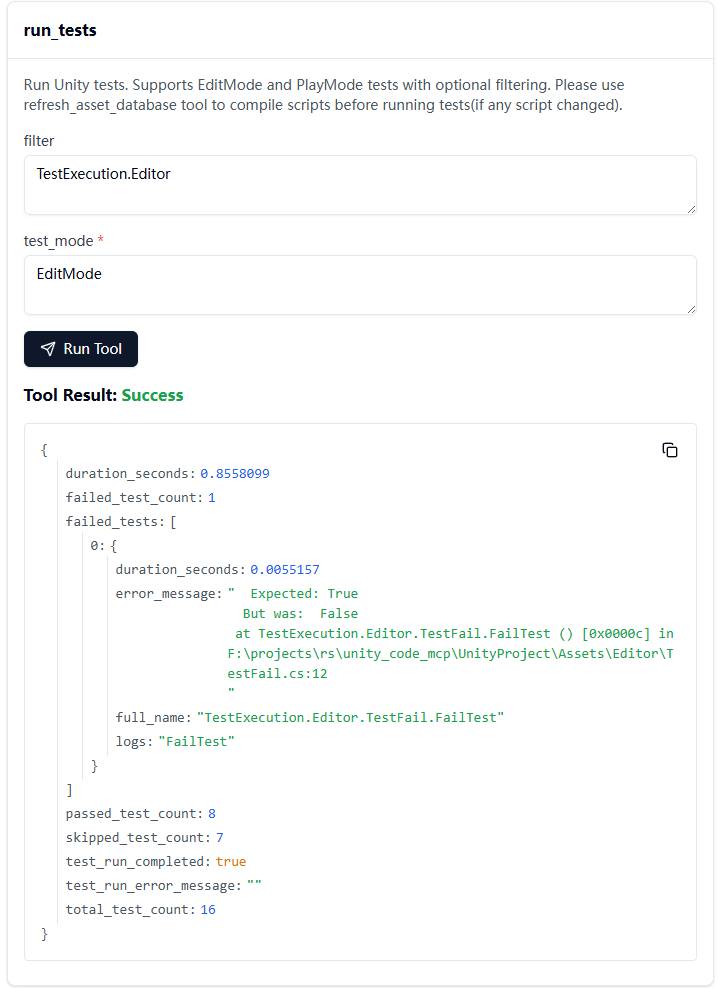
- Runs Unity tests with detailed result output
- Includes stack traces and logs for failed tests
- Supports EditMode and PlayMode tests
Installation
Prerequisites
- Unity 6.0+
Step 1: Install the required Unity package
Install Visual Studio Code Editor for Unity.
To make Unity Code MCP work, ensure the Visual Studio Code Editor package is enabled. To enable it, select an external script editor provided by Visual Studio Code Editor. Verify this in Unity at Preferences → External Tools → External Script Editor — it should show something like “Visual Studio Code Editor v1.0.12 enabled”.
Step 2: Get the MCP binary
Download the MCP binary from Releases.
We currently provide Windows binaries only. If you need another platform, build from source. Windows x64 is the only officially supported target.
Step 3: Configure your AI assistant
Use an absolute path for the command field.
Cursor / Trae
{
  "mcpServers": {
    "unity-code": {
      "command": "/path/to/unity_code_mcp",
      "env": {
        "UNITY_PROJECT_PATH": "${workspaceFolder}"
      }
    }
  }
}
VS Code MCP Extension
{
  "mcp.servers": {
    "unity-code": {
      "command": "/path/to/unity_code_mcp",
      "env": {
        "UNITY_PROJECT_PATH": "${workspaceFolder}"
      }
    }
  }
}
Claude Desktop
{
  "mcpServers": {
    "unity-code": {
      "command": "/path/to/unity_code_mcp"
    }
  }
}
UNITY_PROJECT_PATH is a fallback.
If your client supports MCP roots, workspace roots are preferred automatically.
If ${workspaceFolder} is not resolved by your client, use an absolute path.